Devices

Search the FDA device catalog and Cynch medical models. Include at least three characters from a name or model.

Primary supported devices

Choose a model family, then select the exact variant. Available manuals and repair history vary by model.

Headset applications

Independent Development, Test, and Production releases for each application category.

Waitlist

People interested in VisionTechWear.

Signed upNameEmailPhoneClinic / hospitalSourceStatusActions

Users · Live Coverage

SMS Messages

Review messages and replies, or send operational updates to opted-in experts.

Recent messages and replies

Latest 100 incoming and 100 outgoing messages on this application's number. Replies are shown chronologically; they are not yet linked to individual jobs.

Live Coverage

Expert availability and gaps in round-the-clock coverage.

Manage schedules

Expert Scheduling

Set recurring weekly hours in each expert's time zone. Experts can edit their own hours; admins can manage the team.

View live coverage

AI Settings

Developer access · Current instructions and configuration

Voices

Compare the opening message and choose the voice for your headsets.

Loading current voice…

Admins manage the application voice. Changes apply to newly generated speech.

Expertise amplified.

Hands on the equipment. Help in view.

Bring AI troubleshooting, live expert support, and service documentation to the place where the work happens. Show what you see, ask questions by voice, and keep both hands available for the job.

See how it works
For Biomedical Technicians

Keep your attention on the equipment.

The device is in front of you. The information and expertise you need should be within reach too.

Discuss a fault, show the equipment through your headset camera, and get help while you work. AI troubleshooting can draw on available manuals, repair history, and knowledge contributed by experienced technicians.

Confirm the model, explain what you’re seeing, and work through the next question without reaching for a phone or laptop.

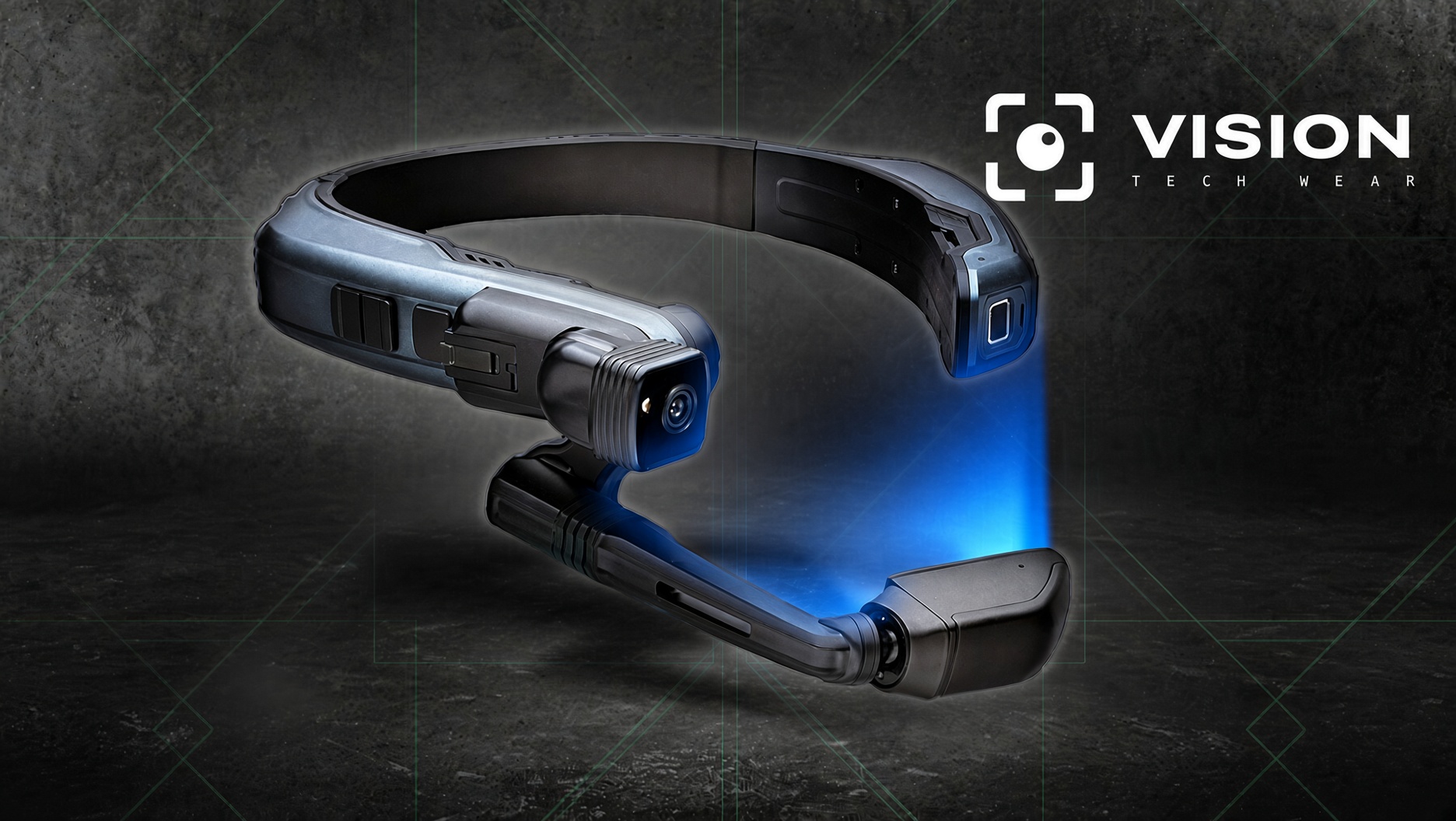
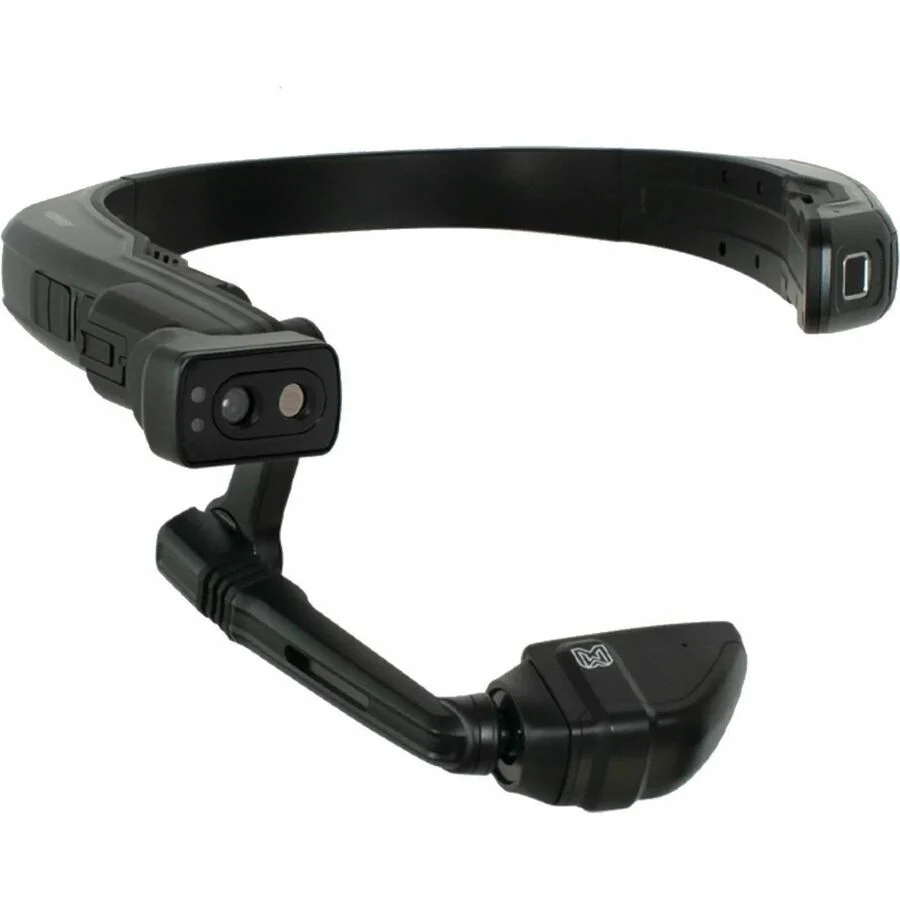
Vision Tech Wear headset with an adjustable display arm and forward-facing camera

From the first look to a record you can revisit.

  1. Show the equipment.

    Use the headset camera to share the device and the problem. Confirm the make and model so the troubleshooting session starts with the right equipment.

  2. Talk through the problem.

    Describe the symptoms, ask questions, and add observations as you work. Use AI guidance or request a live expert when you need additional help.

  3. Keep the record.

    Retain the session’s audio, transcript, and captured images so findings can be reviewed and carried into the service record.

Preventive maintenance · Workflow preview

Do the work.
Capture the record as it happens.

Late notes and missing status changes leave gaps between the work performed and the work recorded. Our planned preventive-maintenance workflow brings device records, OEM task lists, spoken findings, and work-order updates together in real time.

The goal is a service record that reflects the work itself: what was checked, what was found, what remains open, and when each stage happened.

  1. Identify the device.

    Confirm the equipment and bring up information available from the connected service system: model, location, open work, previous maintenance, and pending parts.

  2. Say “Start PM.”

    Open or start the PM work order with the technician, location, and start time captured. For an existing request, the opened and first-attended times establish the response interval.

  3. Follow the OEM task list.

    Work through the applicable manufacturer’s maintenance procedure and record completed steps as you go.

  4. Speak your findings.

    Add observations, measurements, parts requirements, and pending-work updates in real time. Record holds and resumptions so waiting time stays distinct from active work.

  5. Close the work when it is complete.

    Finish the work order by voice, with completion recorded at the time the job ends.

Response time
From the request opening to the first recorded attendance.
Hands-on time
Recorded active work, excluding recorded holds and waiting periods.
Completion time
The finish timestamp, with total elapsed time measured from opening to closure.
When the job gets hard

We see what you see.

Some problems need an experienced second set of eyes. Request a live expert and show the actual fault, screen, connector, or component through the headset’s point-of-view camera.

The expert can ask for a closer look and help assess the next step while you keep both hands available. The conversation and findings remain part of the session record, giving your team something concrete to review afterward.

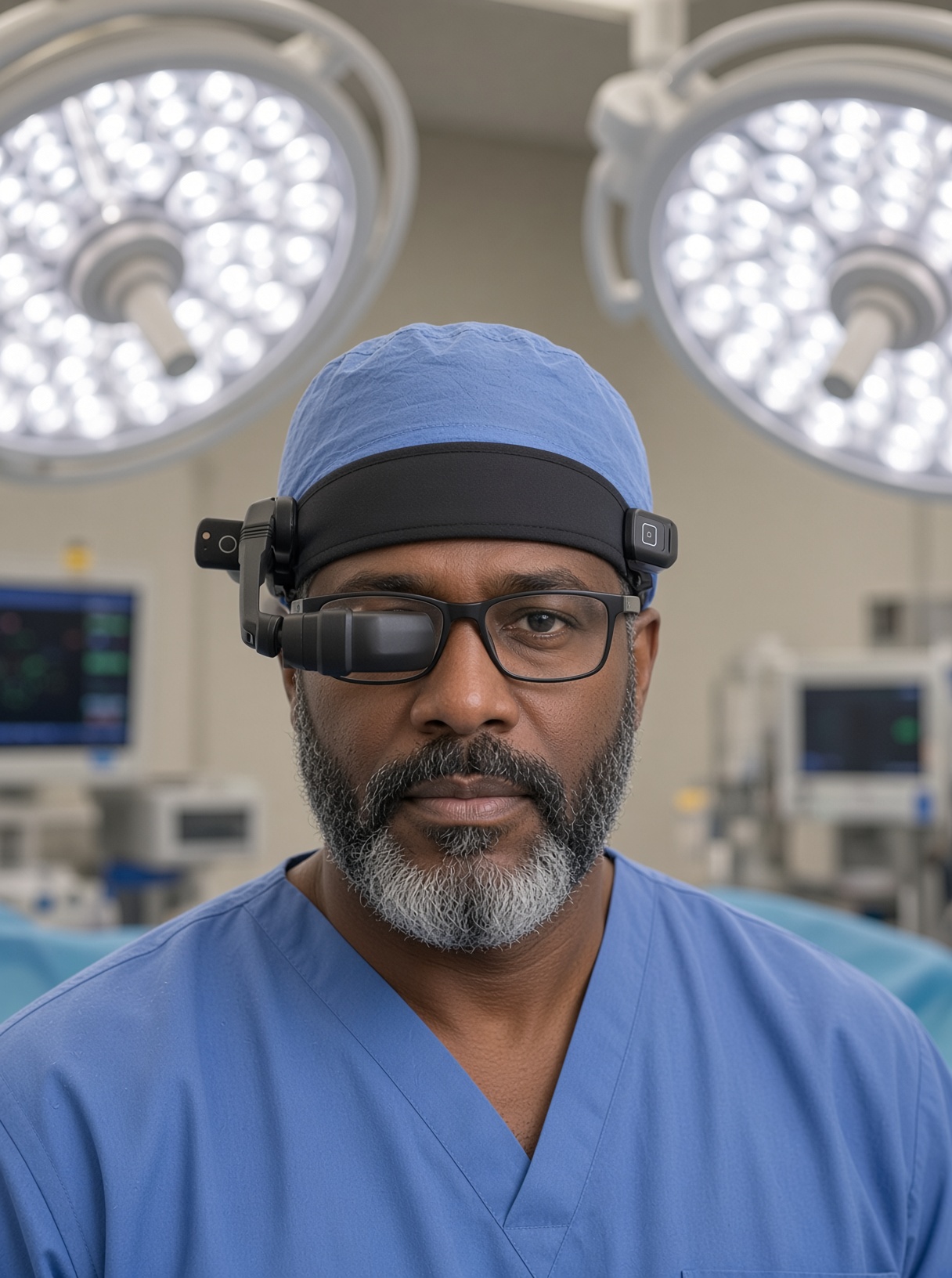
Clinician in scrubs wearing a hands-free headset in a clinical setting
For clinical teams

Bring expertise to facilities with limited on‑site coverage.

Rural clinics and other facilities may not have a biomedical technician nearby when equipment needs attention. Vision Tech Wear gives a clinician a point-of-view audio and video connection to a remote equipment expert.

Show the display, describe the problem, and follow appropriate equipment checks within the facility’s procedures. The expert gains a clearer view of whether the issue can be resolved remotely or needs an on‑site visit.

When a visit is required, dispatch with a better understanding of the failure, the skills required, and the parts that may be needed. The session record carries that context forward.

Thermal imaging

Add another view of the problem.

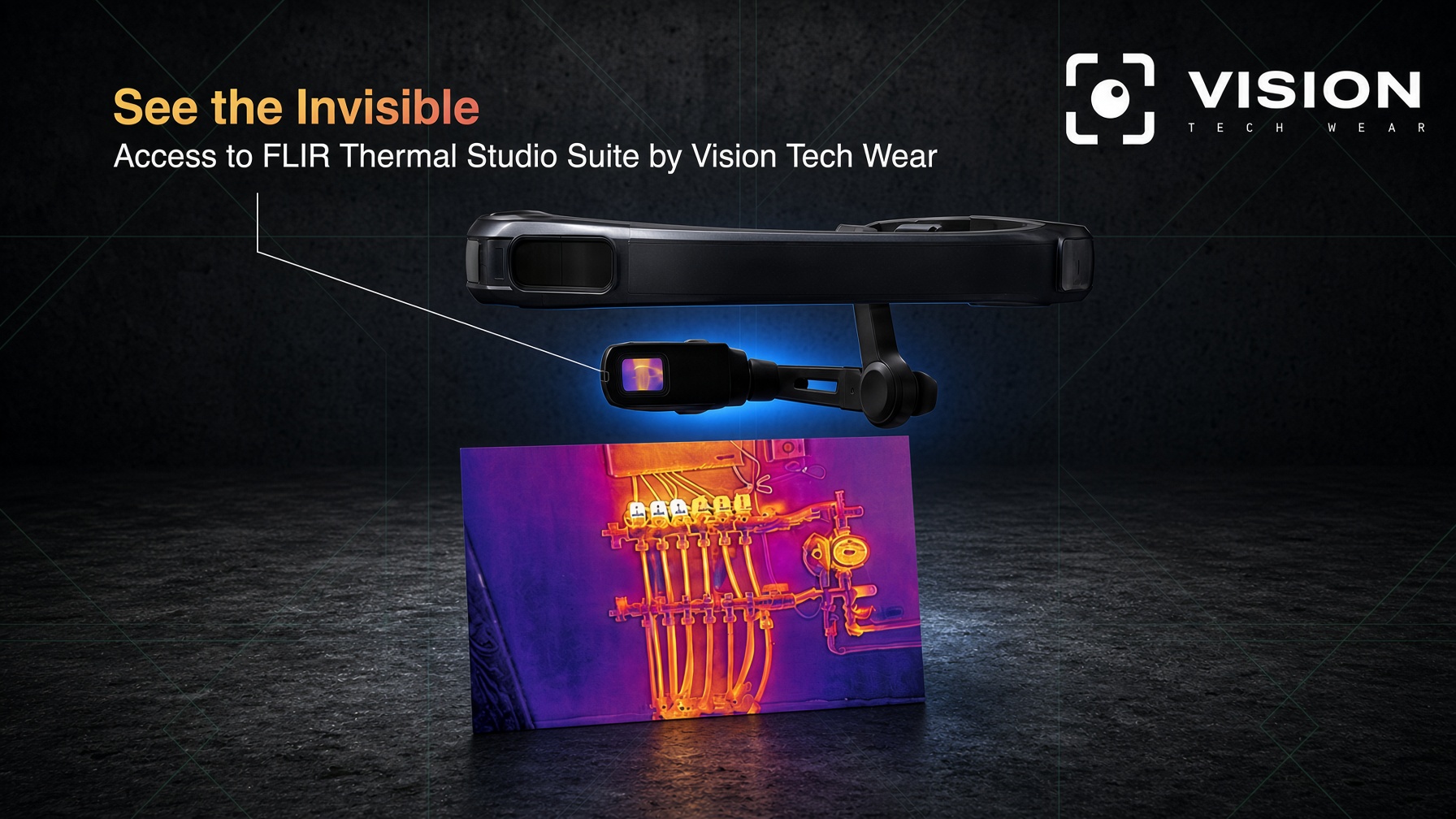
With the integrated thermal-camera module, capture thermal images and available temperature readings for the troubleshooting record. Discuss the hardware and workflow with our team to see how thermal capture could fit your equipment-service needs.

See the Invisible — a thermal-camera module on the headset, with the thermal image it captures of a pipe manifold, and access to the FLIR Thermal Studio Suite.
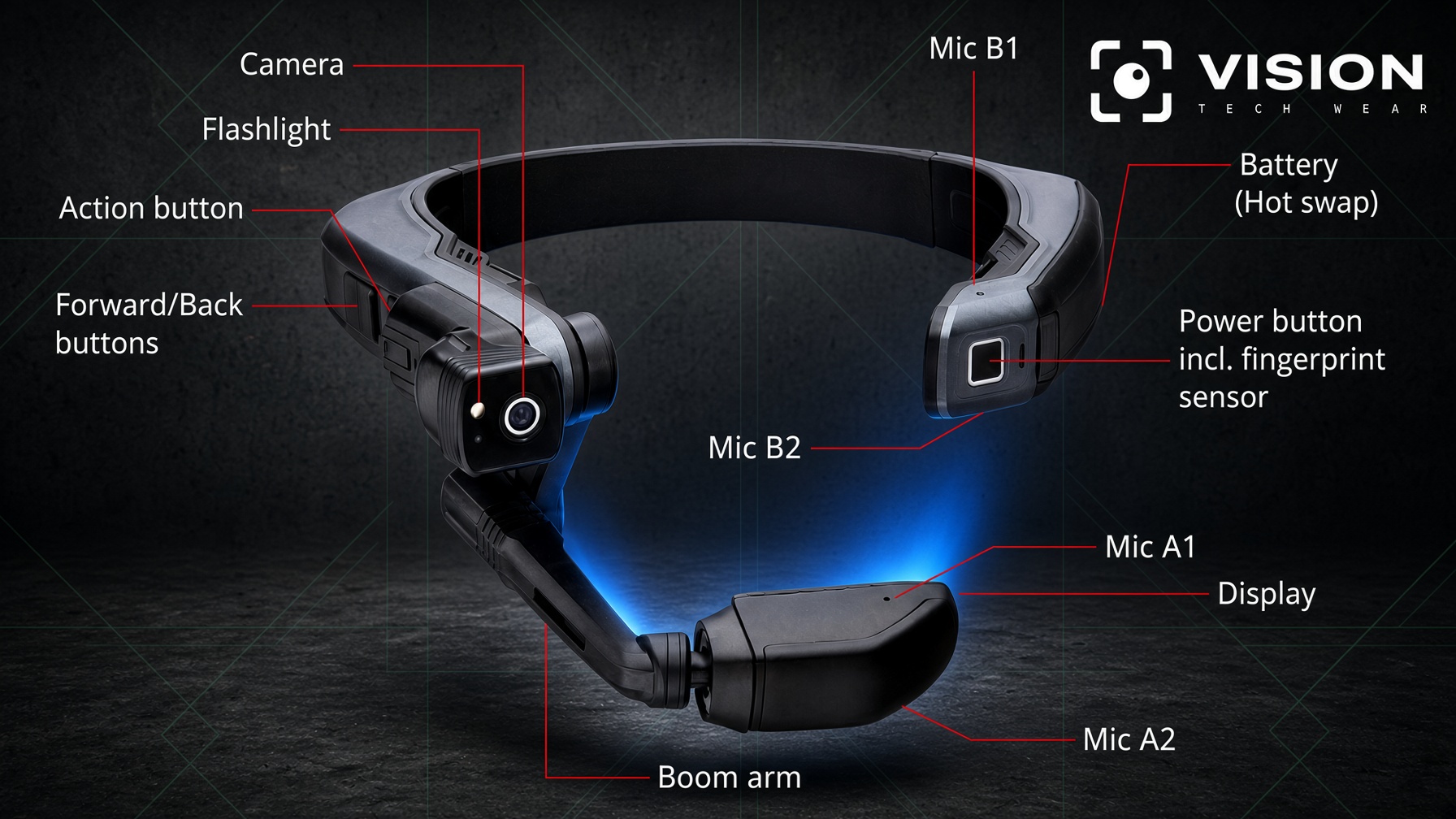
Explore the headset Annotated headset showing the camera, flashlight, microphones, battery, controls, and display

Read the headset field guide

Interactive component map

Show us your workflow.

We’ll show you where hands-free support can help.

Explore Vision Tech Wear with your team’s equipment, service challenges, and documentation needs in mind. Request a demo and early access, and our team will be in touch.

Prefer email? hello@visiontechwear.ai

We’ll use these details to respond to your request. Privacy Policy

Keep up with Vision Tech Wear.

Product news and field-service tips, straight to your inbox.

By subscribing you agree to our Privacy Policy. Unsubscribe anytime.

Vision Tech Wear: expertise amplified through hands-free technology
‹ VisionTechWear
Insights · Rural Healthcare

The real cost of fixing medical devices in rural America — and a faster way

In small-town hospitals and clinics, a single broken infusion pump or imaging system can mean days of downtime and thousands in service costs. Remote expert assistance is changing that math.

When a medical device fails in a major metropolitan hospital, a biomedical equipment technician (BMET) is often just an elevator ride away. In rural America, that same failure looks very different. The nearest qualified technician may be three, four, or five hours away by car — and the device can sit dark for days while everyone waits.

Roughly one in five Americans lives in a rural area, served by thousands of critical-access hospitals, rural health clinics, and small physician practices. These facilities run on the same complex equipment as big urban systems — ventilators, infusion pumps, patient monitors, ultrasound and imaging systems, sterilizers, and lab analyzers — but without the in-house engineering depth to keep it all running.

Why rural repair is so expensive and so slow

The sticker price of a repair rarely tells the whole story. In a rural setting, the hidden costs stack up fast:

3–5 hrs

Typical one-way drive to reach a rural facility in many regions

2 trips

Often needed when the right part isn't identified before travel

Days–weeks

Equipment downtime while parts are diagnosed, then shipped

A different model: bring the expert, not the truck

Remote expert assistance flips the sequence. Instead of sending a person to the problem, it sends the problem — live — to the person best equipped to solve it. Using a hands-free headset like the RealWear Navigator 520, a staff member already on site becomes the expert's eyes and hands.

The person wearing the headset doesn't need to be a seasoned engineer. It can be a nurse, a facilities staffer, or a clinical technician — someone who was going to be in the building anyway. They put on the headset, describe who they are and what's wrong, and within minutes a remote expert is seeing exactly what they see and talking them through it.

Walking an inexperienced person through complex work

This is where remote assistance earns its keep. Because the expert sees the live point-of-view video, they can guide someone with no repair background through surprisingly involved tasks: reseating a board, clearing a fault code, replacing a consumable module, running a calibration, or confirming a sensor reading. The expert points, annotates, and narrates each step; the on-site person simply follows along, hands free.

A large share of service calls turn out to be issues that never required a truck at all — settings, user errors, cleanable sensors, simple swaps. Resolved remotely, those become a 15-minute call instead of a multi-day, multi-hundred-mile ordeal.

Minutes, not days

Many failures that once triggered a dispatch — and days of downtime — can be resolved on a single guided call, with the staff already on site.

When a technician does have to come, the trip actually counts

Not every repair can be finished remotely — and that's fine. The second, underrated benefit of remote assistance is what it does for the visits that still need a specialist on site.

By running the troubleshooting process before anyone gets in the car, the expert can pinpoint the failure and confirm exactly which parts and tools the job will require. The dispatched technician then arrives with the right components already in hand — turning the old "drive out, diagnose, order parts, wait a week, drive back" cycle into a single, decisive visit.

What this means for a rural facility

Put together, remote expert assistance changes the economics of keeping equipment running in places the traditional service model was never built to reach:

See it work for your facility

We're onboarding rural hospitals and clinics now. Get connected to expert help when you need it.

Figures in this article are illustrative estimates drawn from common field-service patterns in rural healthcare and are meant to convey typical ranges, not a specific study. Actual costs and timelines vary by region, equipment, and service contract.

VisionTechWear · Field Guide

Know your headset.

Every part you'll touch during a remote-assist call — and the eight steps that get you from picked-up to connected. Tap any number to see what it does.

DeviceRealWear Navigator Layout500 / 520 Series Hands-freeVoice-first

02

The component map

1 2 3 4 5 6 7 8 9 10 11
1 2 3 4 5 6 7

03

From picked-up to connected

01 — Fit it

Put it on and level it

Loosen the rear band, slip it on, then tighten until it's snug and sits level. Swing the boom arm so the display pod rests just below your line of sight.

02 — Power

Hold the power button

Press and hold the power button on the back of the side housing until the headset buzzes and the display lights up.

03 — Sign in

Rest your finger to unlock

The power button doubles as a fingerprint sensor. A registered finger signs you in without typing.

04 — Connect

Join the assist call

Open VisionTechWear and join your session. Read the on-screen option aloud — say what you see — and you're connected to the expert.

05 — Aim

Point your head at the work

The camera streams what you're looking at. Whatever you face, your expert sees. The indicator light confirms it's live.

06 — Talk

Work hands-free

Speak normally — the mics cut through machine noise. Say Mute Microphone for a private moment, and again to come back.

07 — See it

Light it and zoom in

Switch on the flashlight for dark enclosures, and ask the expert to zoom the camera in on a label, connector, or fault.

08 — Wrap up

End and charge

Close the session, power down, and connect USB-C. The battery indicator shows it's charging for the next call.

04

Drive it with your voice

The headset is built for hands on the equipment and none on a screen. Read a label or button out loud and it acts — no taps, no swipes.

Commands worth memorizing

These work almost everywhere on the headset.

Navigate HomeBack to the main launcher from anywhere My ControlsOpen the settings for the current screen Mute MicrophoneSilence your mic — say it again to unmute Show HelpList the commands available right now

Component layout follows the RealWear Navigator 500-series reference. The diagram is a schematic for orientation, not to scale. Voice commands and on-screen wording may vary by software version.

Remote Expert Assistance
for Medical Devices

The Cynch Remote team helps hospitals and clinics troubleshoot medical devices in real-time. Connect instantly with an expert through AR-powered remote assistance.

Why Cynch Remote?

👁

Live AR Assistance

Your field technician wears a RealWear headset and a CURE expert sees exactly what they see — hands-free, in real time. Annotate directly on the live video feed to guide repairs.

🤖

AI-Powered Diagnostics

Automatic device identification from the FDA GUDID database, recall alerts, PM checklists, and AI-driven troubleshooting steps — all before the expert even joins.

🎥

Session Recording

Every session is recorded at multiple quality levels for training, compliance auditing, and knowledge transfer. Photos and documents are stored securely.

🔒

Secure & Reliable

Built on Cloudflare's global edge network. Data is encrypted in transit and at rest. Role-based access control keeps your organization's data safe.

How It Works

1

Start a Session

The on-site technician puts on the RealWear Navigator 520 and says "Start Call." The headset's camera begins streaming and the session context wizard captures the device make, model, serial number, and problem description.

2

Expert Connects

A CURE expert joins from any browser — desktop or mobile. They instantly see the technician's point of view, hear audio, and can speak back. AI automatically pulls up device data, FDA recalls, and troubleshooting guides.

3

Resolve Together

The expert draws annotations on the live feed, shares reference documents, and walks the technician through the repair step-by-step — all hands-free. The session is recorded for future reference.

RealWear Navigator 520 smart glasses

RealWear Navigator 520 — configured for Cynch Remote

Built for the RealWear Navigator 520

Purpose-built for hands-free operation in clinical environments. The ruggedized headset clips onto a hard hat or safety glasses and is fully voice-controlled.

  • Completely hands-free — voice-controlled UI
  • HD camera streams the technician's point of view
  • Noise-canceling microphones for loud environments
  • IP66-rated for hospital and lab settings
  • Compatible with safety glasses and loupes
  • 16-hour battery life for full shift coverage
Buy — $3,150 How to use it Free shipping · Pre-configured for Cynch Remote

Get the Cynch Remote App

Field technicians: scan to install the Cynch Remote app on your Android device or RealWear headset.

Download APK

After downloading, open the file and allow installs from this source if prompted. Requires Android 8.0 or later.

New to the headset? See the field guide →

Ready to get started?

Describe your device and the issue you're facing — our AI will search for solutions and email you the results.

Get Started

Get the help you need,
when you need it

Connect your hospital or clinic to an expert who can walk your staff through even the most complex issues — live, over our remote viewer system.

How it works
⚡

Stop playing phone and email tag

Don't waste your staff's time waiting on callbacks and threads that go nowhere. Get connected to a live expert and get your issue resolved — immediately.

How it works

1

Put on the headset

Your staff member puts on the RealWear Navigator 520 — a rugged, hands-free headset with an HD point-of-view camera, fully voice-controlled.

2

Tell our AI what's going on

They tell our AI who they are, what they're working on, and what the issue is — all hands-free. No forms, no logins, no waiting on hold.

3

An expert joins in minutes

An expert joins within minutes, sees exactly what your staff sees, and begins the troubleshooting process right away — guiding them step by step to a fix.

Join the waitlist

We're onboarding hospitals and clinics now. Add your details and we'll reach out to get you connected.

Get Started

Tell us what you're working on and our AI will search the FDA device database and troubleshooting knowledge for solutions.

We'll email you when your results are ready.

Your Results

Loading…

Fetching your results.

RealWear Navigator 520 smart glasses

RealWear Navigator 520

Smart Glasses · Pre-configured for Cynch Remote

$3,150.00

Includes free shipping to all 50 U.S. states.

  • ✓Ships with the Cynch Remote app installed and configured
  • ✓Hands-free, fully voice-controlled
  • ✓HD point-of-view camera + noise-canceling mics
  • ✓IP66-rated · 16-hour battery
Buy now — $3,150.00

Checkout

RealWear Navigator 520 · Pre-configured for Cynch Remote

Contact

Shipping address (US only)

Payment

🔒 Card details are encrypted and sent directly to Authorize.net. We never store your card number.

Order summary

RealWear Navigator 520
Pre-configured for Cynch Remote · Qty 1
Subtotal$3,150.00
Shipping (all 50 states)Free
Total$3,150.00

Login

Sign in to your Cynch Remote account

Don't have an account? Ask your administrator for an invitation.

Create Account

Complete your registration to join Cynch Remote

Dashboard

Open Expert Console
—
Active Sessions
—
Total Users

Live Sessions

StatusSession NameRemote CameraStartedActions

Live wall

· Click a headset to enlarge it · No audio

Users

NameEmailRoleExpertPagingSkillsJoined

Pausing an expert stops call pages reaching them until the time you pick runs out (or you hit Resume). It leaves their schedule and expert status alone.

Hospitals

Setting up a new headset? Get the install code and assignment steps here — or use "+ Register Headset" to pre-assign one by its Android ID.

Setting up a headset

Every step below has been run on the headsets now in the fleet. It needs a Mac with adb and a USB cable — RealWear's dock connector seats loosely, so if adb devices is empty, try the other port and a cable you know carries data.

1 · Install the app

Headsets enrolled in Ari Cloud get it automatically. For a headset that is not enrolled, sideload the release build — the prototypes run the production signature, so a debug build fails with INSTALL_FAILED_UPDATE_INCOMPATIBLE.

adb install -r app-release.apk
adb shell am start -n me.cynch.remoteassist/.MainActivity

The app has to run once before the headset has an ANDROID_ID — that value is what the registry keys on, and it does not exist until then.

2 · Grants that the headset will not work without

adb shell pm grant me.cynch.remoteassist android.permission.POST_NOTIFICATIONS
adb shell appops set me.cynch.remoteassist SYSTEM_ALERT_WINDOW allow
adb shell pm disable-user --user 0 com.realwear.training
adb shell settings put secure enabled_accessibility_services \
  com.realwear.wearhf/com.realwear.wearhf.MainService:me.cynch.remoteassist/me.cynch.remoteassist.PowerMenuService
adb shell settings put secure accessibility_enabled 1
adb shell appops set com.realwear.launcher PLAY_AUDIO deny
  • Display over other apps is not cosmetic: without it the app cannot relaunch itself after a reboot or an update, and the headset strands on RealWear's "Let's get connected" wizard. The menu screen warns when it is missing.
  • Read the accessibility list before writing it. That setting replaces the whole list, and WearHF's service is what makes voice commands click buttons — dropping it kills voice across the entire headset. Always write both entries, colon-separated.
  • Disabling com.realwear.training stops the OEM tutorial claiming the screen. Reversible with pm enable.

3 · Wi-Fi

cmd wifi connect-network is refused for the shell user on these builds, so joining a network is a walk through the UI — on the headset, or driven with taps over ADB. Settings → Wi-Fi from the app's own menu gets there without ADB, which is the field path when a headset drops off the network.

adb shell svc wifi enable
adb shell am start -a android.settings.WIFI_SETTINGS
adb shell cmd wifi status          # confirms the SSID and IP

4 · Register it

The menu screen shows "Not registered yet" with the headset's ID. Add the headset on the Headsets page with that ID, or fill in the box details first and link the ID once the app is running. The line disappears on its own once the headset is filed under a hospital — a headset with no facility counts as unregistered, by design.

  • Identify the unit by serial or MAC, never by what it reports. Both the 500 and the 520 report ro.product.device=Navigator-500, so the model key has to be set by hand. ro.serialno has matched the sticker on every headset checked so far.
  • The factory Wi-Fi MAC is the one identifier that cannot be mistyped or shared: adb shell dumpsys wifi | grep factory_mac. What WifiInfo reports is a randomised per-network address, and Android returns 02:00:00:00:00:00 to apps.
  • Record the accessories that ship with it — dongle IMEI, SIM numbers, battery and charger barcodes. Those numbers exist nowhere else once the carton is gone.

If something goes in wrong

Every change to a headset record is archived first. Open History on its row to see what it held before each edit and put any version back — including a headset that was deleted, which is listed under Archived headsets. Restoring archives the current state too, so a restore can itself be undone.

Headsets

Setup guide

App versions & activity

Versions come from the headsets. Activity updates every 30 seconds while compatible apps are open; reports older than 90 seconds show as unknown. Ari assignments do not confirm installation.

Loading headset reports…

Set up headset

Hardware Orders

StatusCustomerShip toAmountPlaced

Domain Settings

Configured Domains

White-label the app per domain. Each visitor sees the brand for the hostname they arrive on; unlisted domains fall back to the Cynch Remote defaults.

DomainBrandAccentSupport email

Site Access

PIN-protected hostnames

A hostname listed here shows nothing at all — not the marketing pages, not the login screen — until a visitor enters its PIN. This is what keeps the development site (dev.visiontechwear.ai) off the open internet. Hostnames that are not listed, including this production site, stay publicly reachable.

HostnamePIN last changedChanged by

Web Stats

Loading…

Sessions

StatusSession NameRemote CameraStartedActions

Your Profile

Manage your photo, availability, and how we reach you about pending calls.

Photo & Name

Profile photo

Time zone

Used for voice activity timestamps and your availability schedule. Save your profile to apply changes.

Availability

Set the hours you're available to take assist calls. You can also mark on-call blocks — hours you aren't actively available but can be reached as a backup if no one else picks up. Times use your local timezone (detecting…).

Skills & Specialties

List the equipment, manufacturers, modalities, and problem types you can help with. Paste in as much detail as you like — a full résumé, certifications, or a long list all work. This helps route the right calls to you.

Call Notifications

Choose how we reach you when a call is pending. Enable a channel and add the numbers or addresses to contact.

Sends a test to your saved channels. Save changes first.

Controls

Call details

Caller

Equipment

Image

← Back to session
Session image

AI analysis

Comments

Session

Sessions Join Context

Info

Loading…

AI Assistant

Ask follow-up questions about this device and issue.

Audit Log

No events

Session Context

Order / Work Order Number

Enter the order or work order number for this session.

Invite Experts

Enter email addresses (one per line) to send a session invite.

Are you sure?

Move this accessory